> ## Documentation Index
> Fetch the complete documentation index at: https://cobo-docs-feature-cobo-cli.mintlify.site/llms.txt
> Use this file to discover all available pages before exploring further.
# Build a Hello World app
This article introduces how to build a Hello World app and preview it locally.
## Prerequisites
* To build and manage a Cobo Portal App, you need to first create an organization in Cobo Portal in the [development environment](https://portal.dev.cobo.com/). Follow the instructions in [Quick start guide](https://manuals.cobo.com/en/portal/quick-start-guide) to set up your Cobo account and create your organization. If an organization has already been set up, ask your organization admin to invite you to join the organization.
* Install FastAPI or Next.js as the development environment.
## Create an app project
1. Install Cobo CLI.
```shell
$ pip install cobo-cli
# Test if the installation is successful
$ cobo
```
2. Log in to Cobo Portal and connect Cobo CLI to your Cobo Portal account. Follow the instructions on the screen to complete the authorization process.
```shell
$ cobo login
```
3. Create a Hello World app project.
```shell
# To develop with Next.js, use `-f nextjs` instead
$ cobo apps create -d helloworld -f fastapi
```
## Preview the app
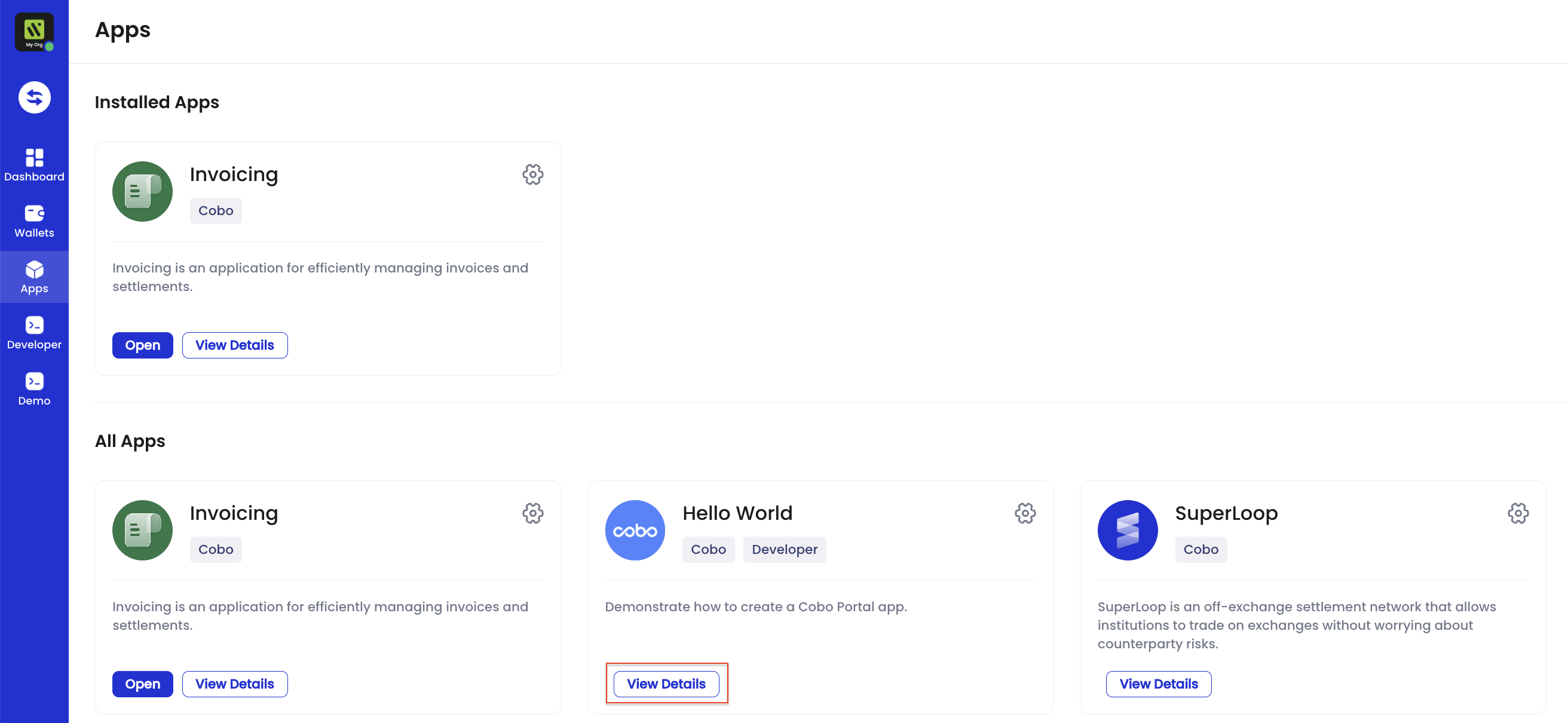
1. In Cobo Portal, click the **Apps** icon in the left-side navigation bar, navigate to the Hello World app, and then click **View Details**.
 2. On the details page, click **Install** to install the app. Select the optional permissions and wallet scopes of the app based on your preferences, and then click **Confirm**.
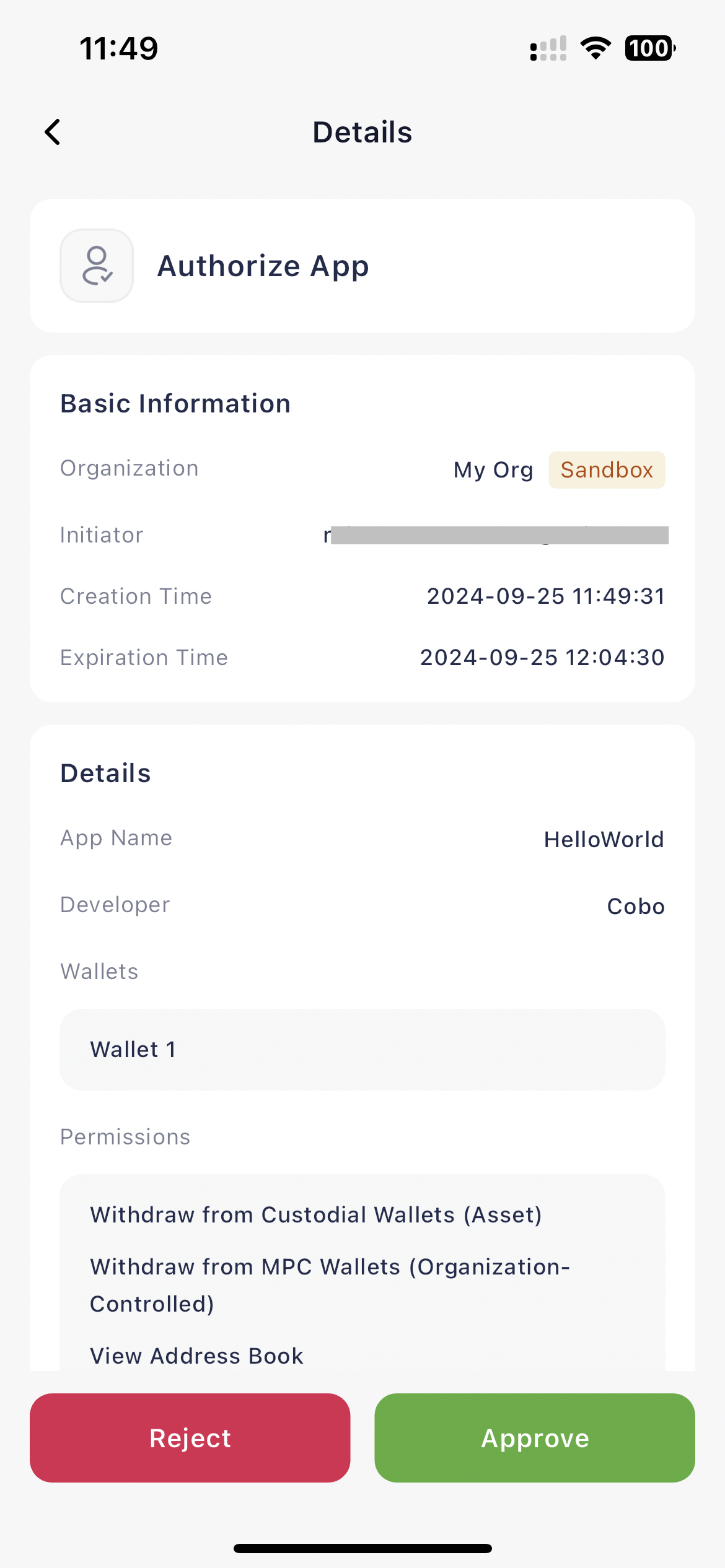
3. Ask your organization admin to authorize the installation of the app in Cobo Guard.
2. On the details page, click **Install** to install the app. Select the optional permissions and wallet scopes of the app based on your preferences, and then click **Confirm**.
3. Ask your organization admin to authorize the installation of the app in Cobo Guard.
 4. Run the app project locally.
```shell
$ cd helloworld
$ cobo apps run
```
Once the project is up and running, you will be directed to the homepage of the Hello World app. Take some time to explore the app and observe how it correlates with the code within the project.
4. Run the app project locally.
```shell
$ cd helloworld
$ cobo apps run
```
Once the project is up and running, you will be directed to the homepage of the Hello World app. Take some time to explore the app and observe how it correlates with the code within the project.