

Sample project
Cobo offers a sample project Hello World that allows you to quickly build a Cobo Portal App and preview it on your local machine. Refer to Build a Hello World app for details.Prerequisites
- To build and manage a Cobo Portal App, you need to first create an organization in Cobo Portal in the development environment. Follow the instructions in Quick start guide to set up your Cobo account and create your organization. If an organization has already been set up, ask your organization admin to invite you to join the organization.
- Choose and install either FastAPI or Next.js as your development framework.
Develop the app
Install Cobo CLI
Cobo CLI is a developer tool that allows you to build, test, and manage Cobo Portal Apps directly from the command line. This section introduces how to install Cobo CLI and connect it to your Cobo Portal account.-
Install Cobo CLI.
-
Log in to Cobo Portal and connect Cobo CLI to your Cobo Portal account. Follow the instructions on the screen to complete the authorization process.
-
Create a Hello World app project. This can serve as the starting point for your app development. Alternatively, if you already have an app project, you can add the manifest file to the root directory of your project.
Acquire authentication information
To authenticate your API requests to the WaaS service in Cobo Portal Apps, you need to provide your app key and Org Access Token. You also need to calculate an API signature if you are not using the WaaS SDK. Refer to Cobo OAuth for how to acquire all the necessary information for authentication.Verify app users
User Info Tokens are JSON Web Tokens (JWTs) signed by Cobo Portal. These tokens allow Cobo Portal Apps to retrieve information about users, including their user ID, email address, and permissions. A Cobo Portal App can use the information to verify a user’s identity and control their access to the organization’s resources based on the permissions. It is recommended that you verify a user’s identity before they can get started using the app. For more information, refer to User Info Tokens.Call the WaaS API
You can now call the WaaS 2.0 API to build features for your app. When calling an API operation, you need to provide the required authentication information in the request header. The following code snippets show how to list all the wallets in an organization using the WaaS Python SDK.Configure the manifest file
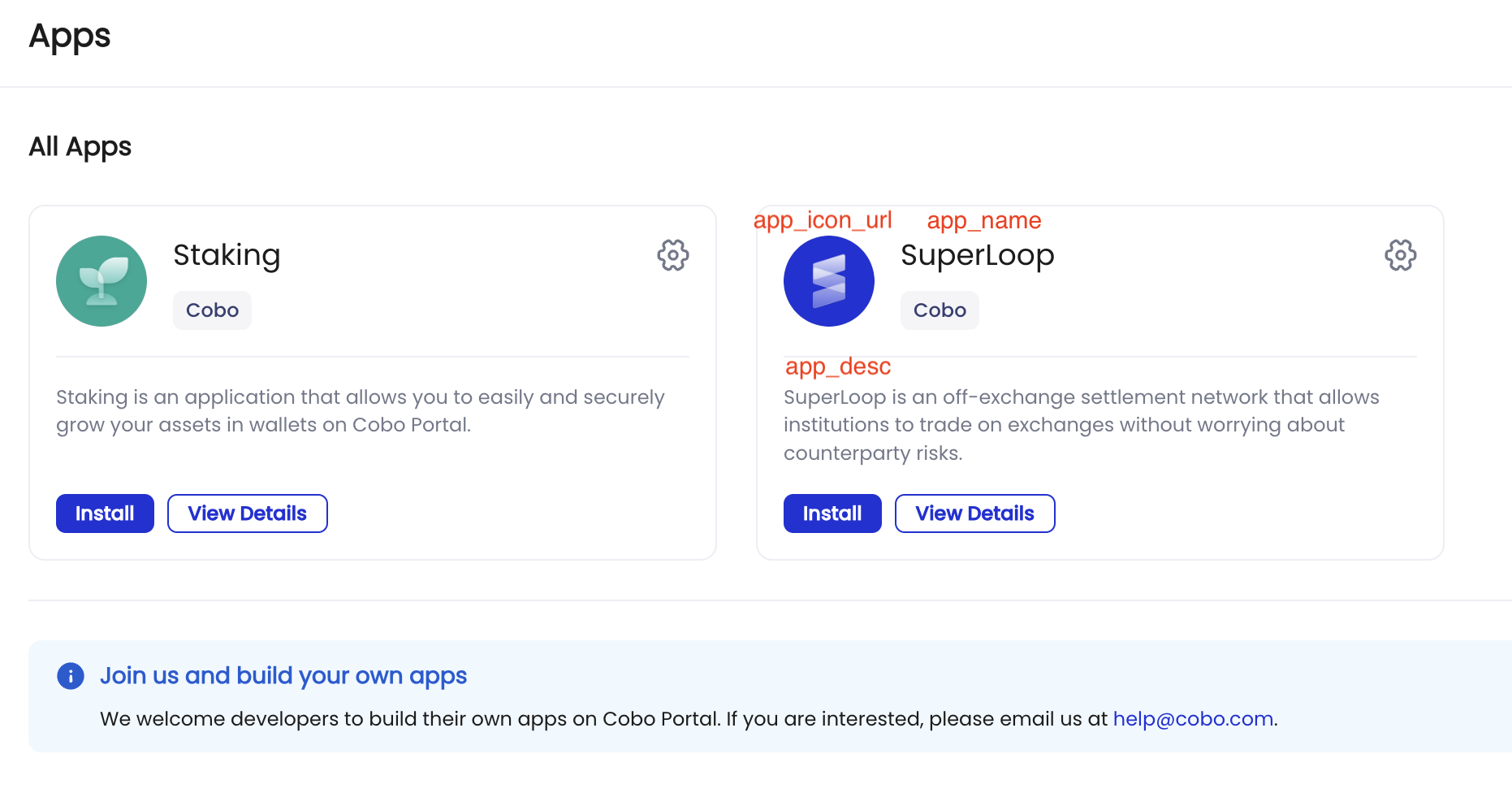
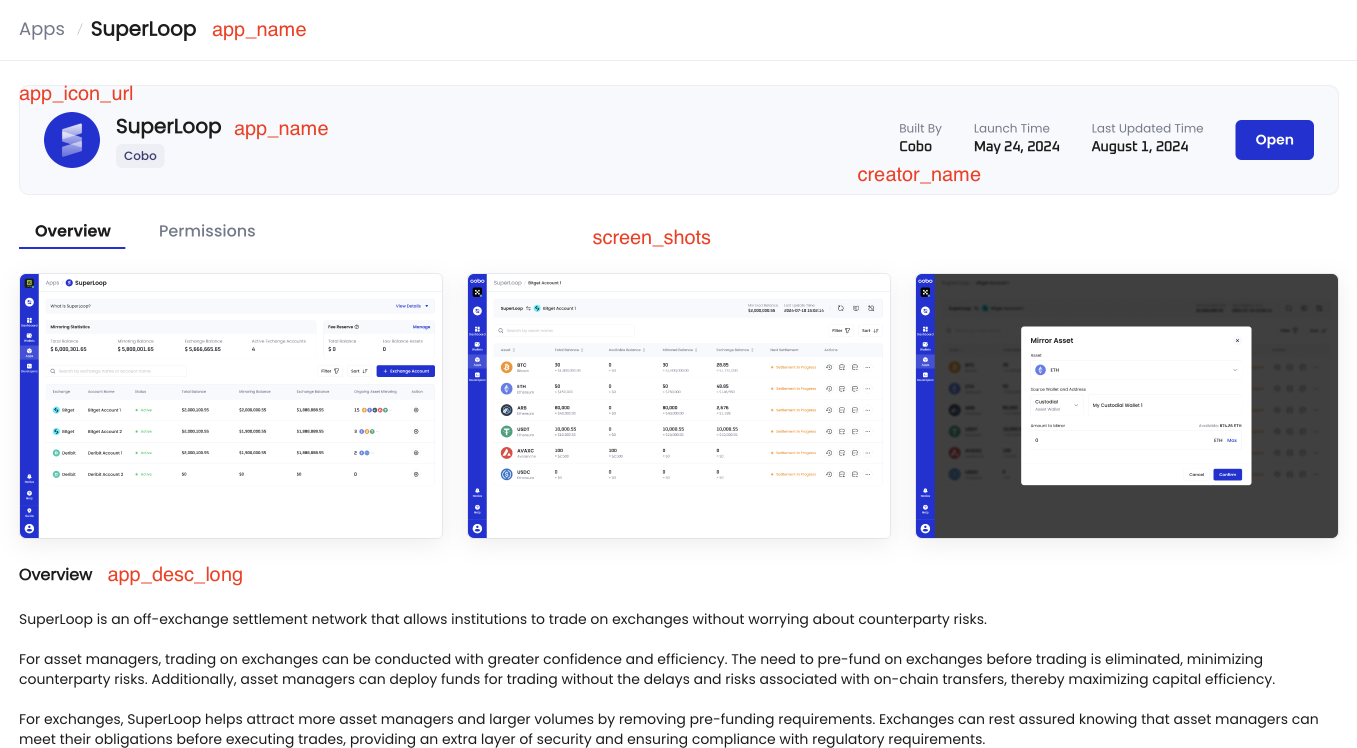
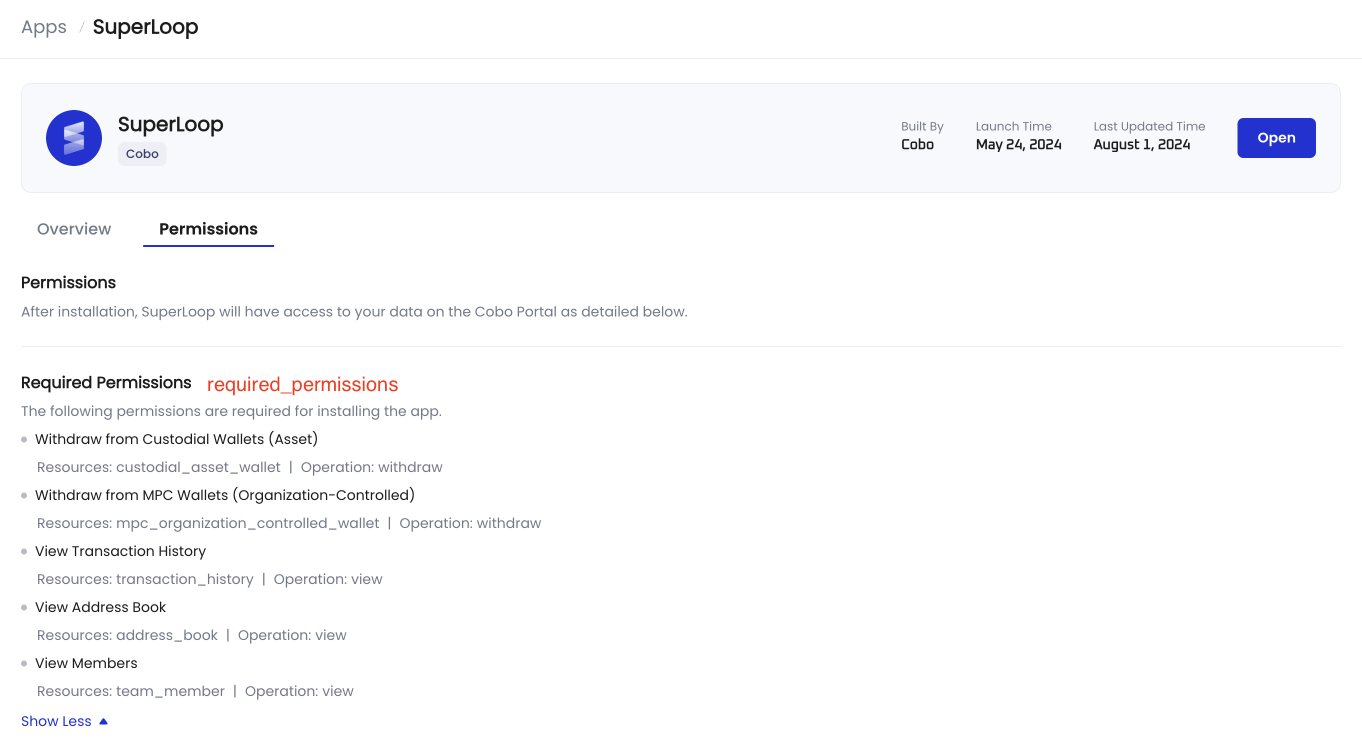
Before you publish the app, you need to fill out the manifest file, which contains the app’s configuration information. Refer to the following table for field descriptions and examples.
Refer to the following screenshots for where these fields will display on the app UI.
The Apps page
 The Overview tab of the App Details page
 The Permissions tab of the App Details page
Publish the app
When you have completed developing your app and configuring the manifest file, use the following Cobo CLI commands to publish the app to the production environment or development environment.-
If you publish your app to the production environment, the publish command will automatically trigger a workflow that requires approval from Cobo. The approval result will be sent as an email to the
contact_emailconfigured in the manifest file. Once approved, your app will be available to all users on Cobo Portal. - If you publish your app to the development environment, no approval is required and your app will be available only to the users in your organization.